
If there is one hot topic right now, it is everything around AI, especially in 2024.
Google has presented its plans around I/O, Apple is preparing its keynote for June.
In short, everyone is talking about it, everyone is getting into it.
But how can we use AI in our job as developers? I personally don't think AI will replace us, but today it is a tool we should rely on to code and increase our productivity.
Here we will look at a few of the possibilities that LLMs bring to our daily work when integrated into our development tools:
- Commenting code
- Bug fixes / syntax errors
- Source code optimisation
- Explaining code
- Generating commit messages
- ...
Installing Ollama and installing a model
Ollama is an easy-to-use tool designed to run large language models (LLMs) directly and locally on your computer. It is both fast and lightweight.
To install it, go to the Ollama website.
As I am on Mac OS, I will simply install it with brew:
brew install ollama
Once it is installed, you need to install an LLM on the machine.
For this we will fetch LLaMA 3 (Large Language Model Meta AI), a family of language models developed by Meta (formerly Facebook).
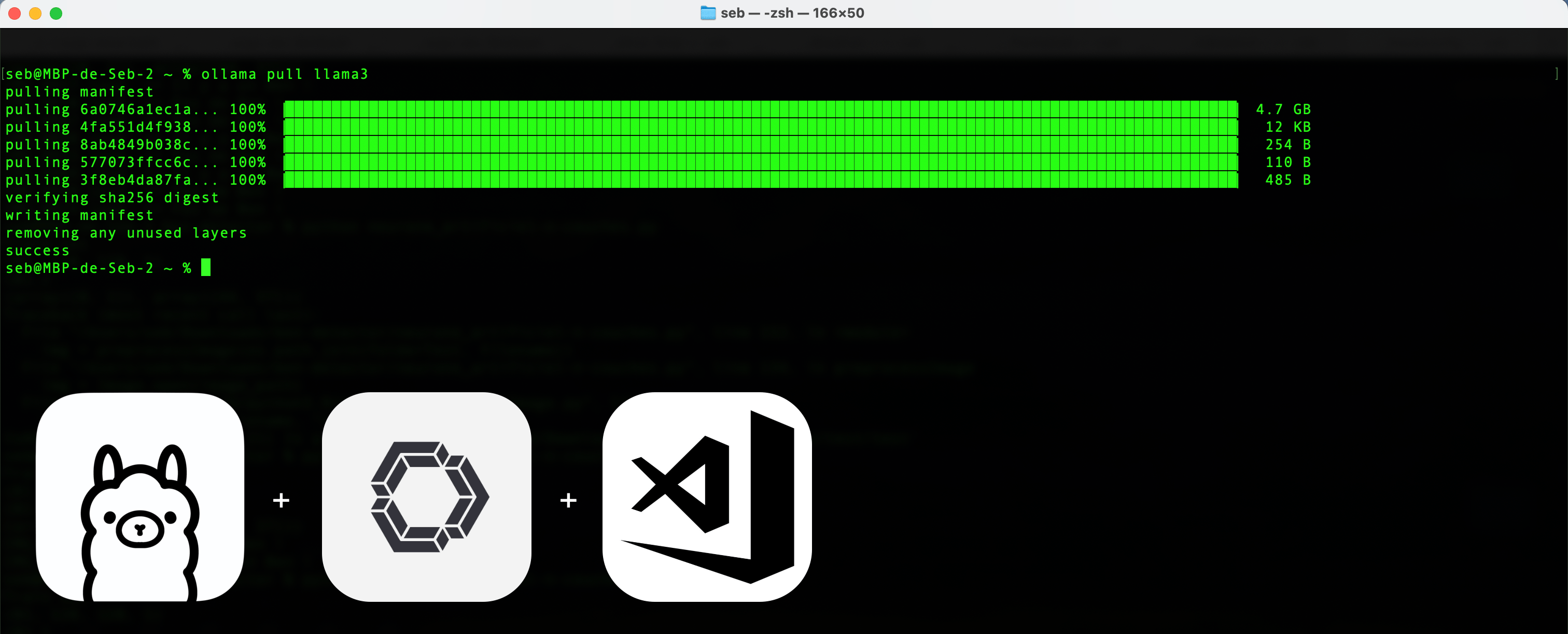
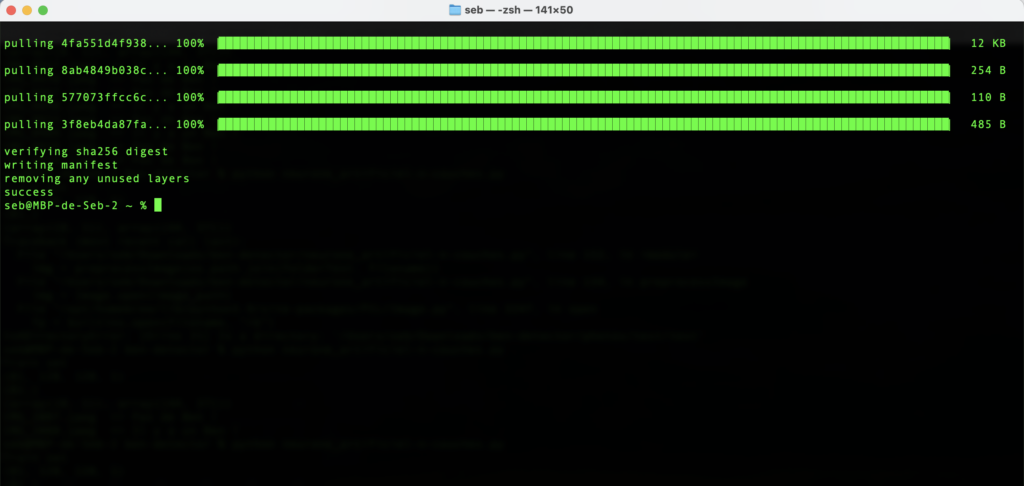
The model is recent (at the time of writing), very capable and needs few resources. Open your terminal and type:
ollama pull llama3
You can start the chatbot by typing ollama run llama3, but we are going to see how to integrate it into the Visual Studio Code IDE using Continue.
Installing Continue in Visual Studio Code
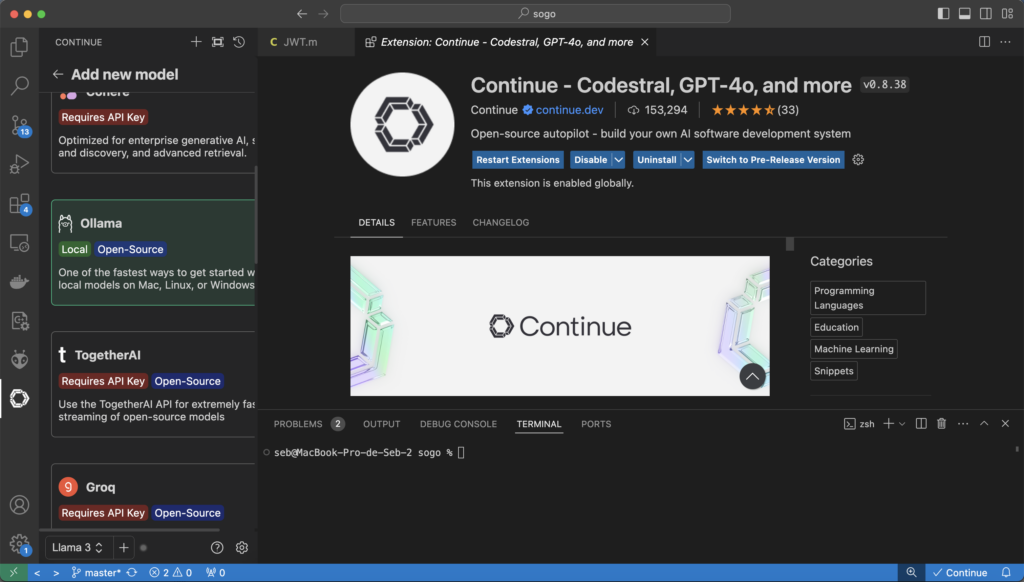
In VS Code, use SHIFT + CMD + X to open the extensions (or the Preferences / Extensions menu), then type Continue.
Then install the extension.
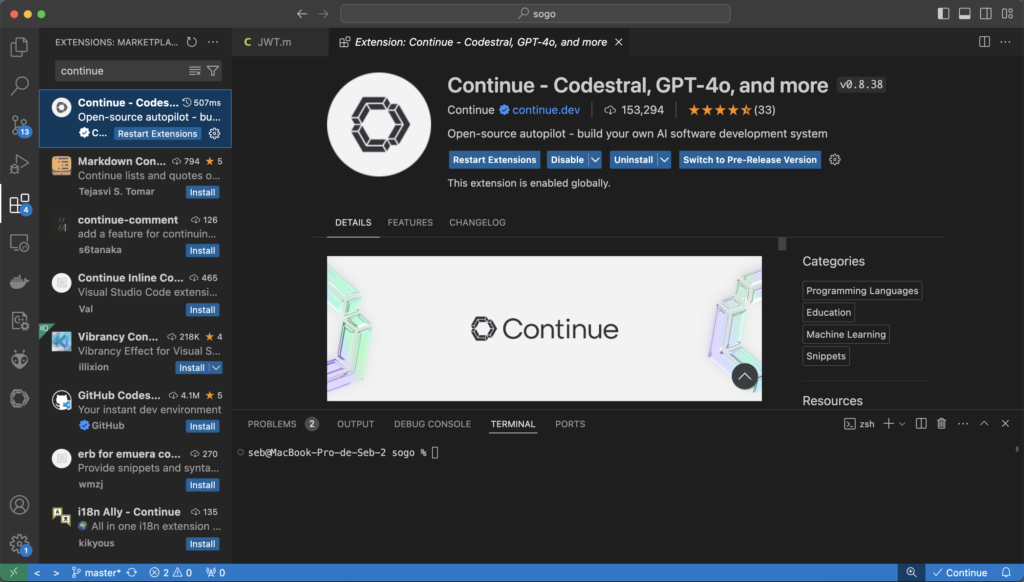
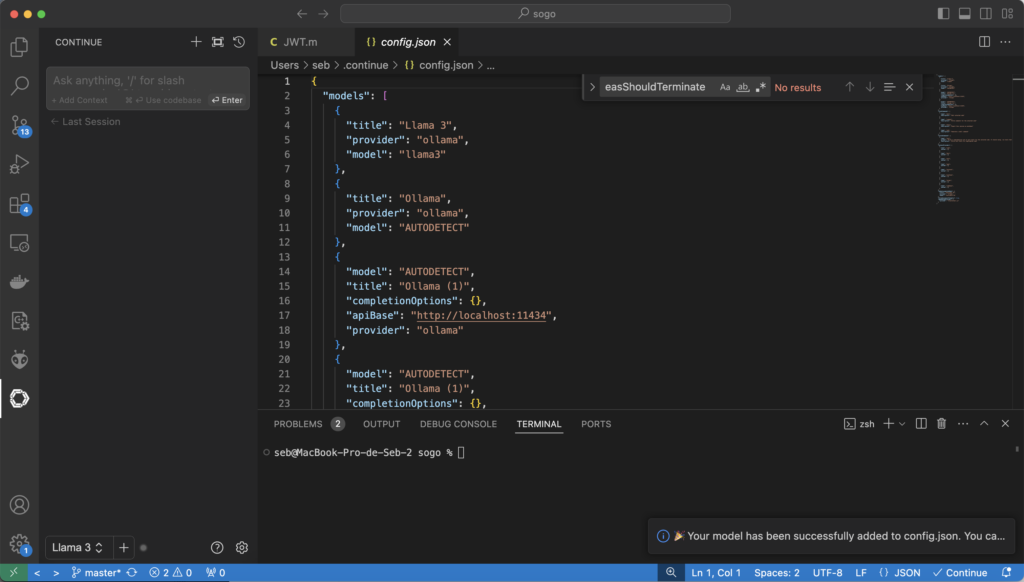
To finish the setup, click 'Add a model', then 'Ollama', then 'Autodetect'.
In the list in the panel, 'Llama3' should be selected.
If it isn't, select it.
Using the LLM in your code
Generating comments automatically
If there is one task that is boring yet essential, it is commenting our code.
Commenting code is an essential practice in software development for several reasons:
- Clarity and understanding: Comments help explain what the code does, especially in complex or non-obvious sections. They make it easier for other developers who may read or maintain the code in the future to understand it.
- Maintenance: Code evolves over time, and well-placed comments can help developers remember the logic or intent behind certain design decisions. This makes maintenance and updates more efficient.
- Collaboration: In collaborative development environments, comments let team members quickly understand the functionality and structure of the code, which improves communication and cooperation.
- Documentation: Comments act as built-in documentation, explaining how functions, classes and modules are used, as well as the expected parameters and return values.
- Troubleshooting and debugging: When a problem occurs, comments can give clues about the original logic of the code, helping to identify and fix errors more quickly.
- Good practice: Commenting your code is part of good programming practice. It shows a professional and rigorous approach to software development.
This is where the LLM comes in! We can generate comments automatically.
Of course you still have to read them through to correct / validate them, but it is a great help all the same!
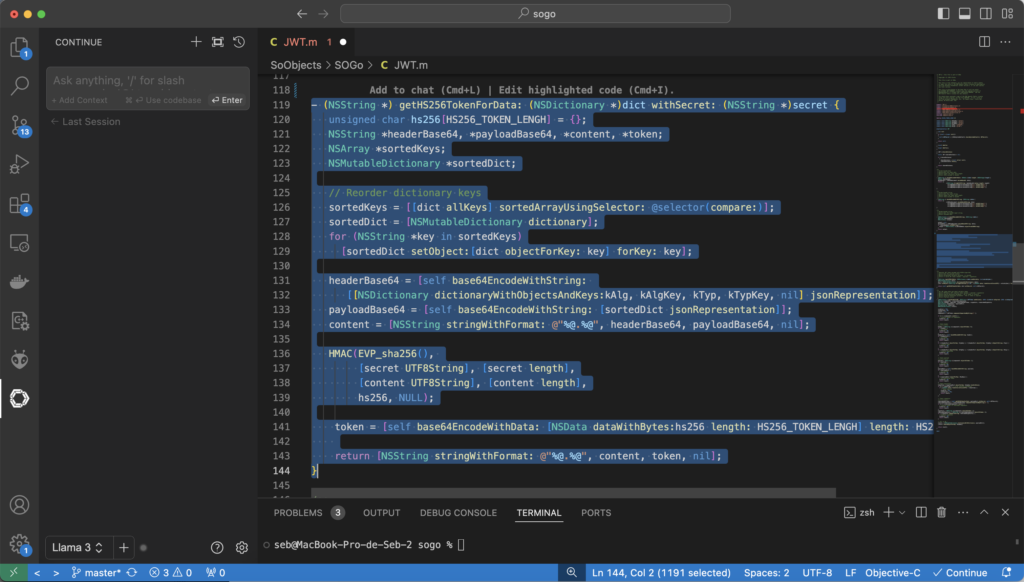
Nothing could be simpler: select the method to comment, then right-click, Continue and Write a Docstring for this code.
Once the comment has been generated, accept it with OPTION + CMD + Y.
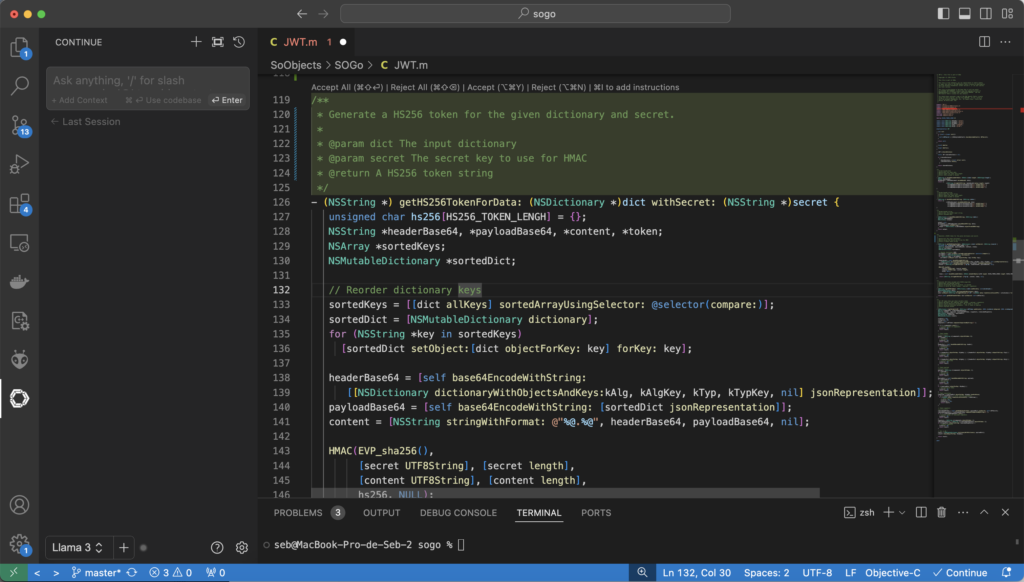
You can also use the Write comments for this code option - in that case the LLM will also suggest changes to the code to make it clearer.
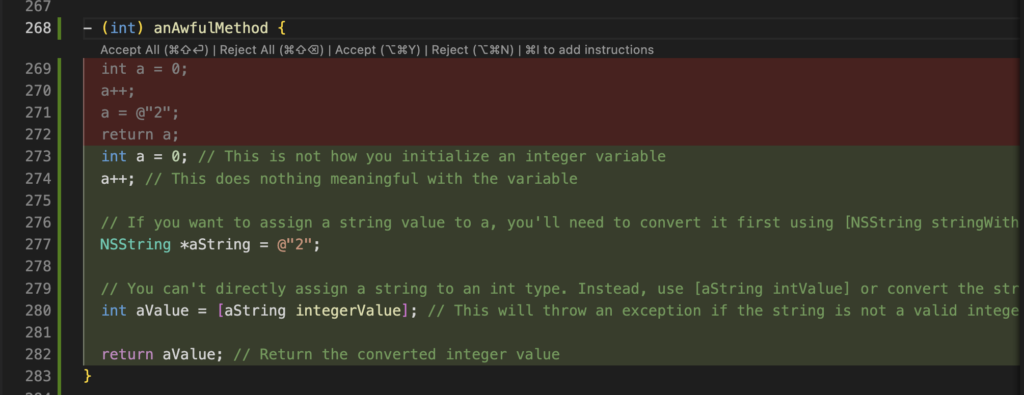
Fixing errors / bugs
Let's face it, when the days are long, your attention slips and mistakes come easily.
To ask the LLM to fix the code, simply select the problematic code, then right-click, Continue and Fix this code.
Once the comment has been generated, as before, accept / reject the suggested changes with OPTION + CMD + Y or OPTION + CMD + N.
Code optimisation
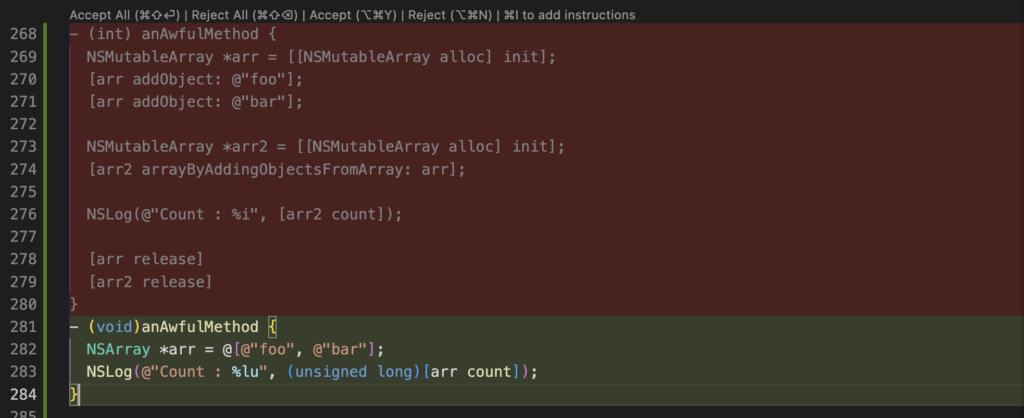
It can also be good practice to ask whether there are any code optimisations to suggest.
To do this, select the code to optimise, then right-click, Continue and Optimize this code.
Once the comment has been generated, again accept / reject the suggested changes with OPTION + CMD + Y or OPTION + CMD + N.
Help with understanding code
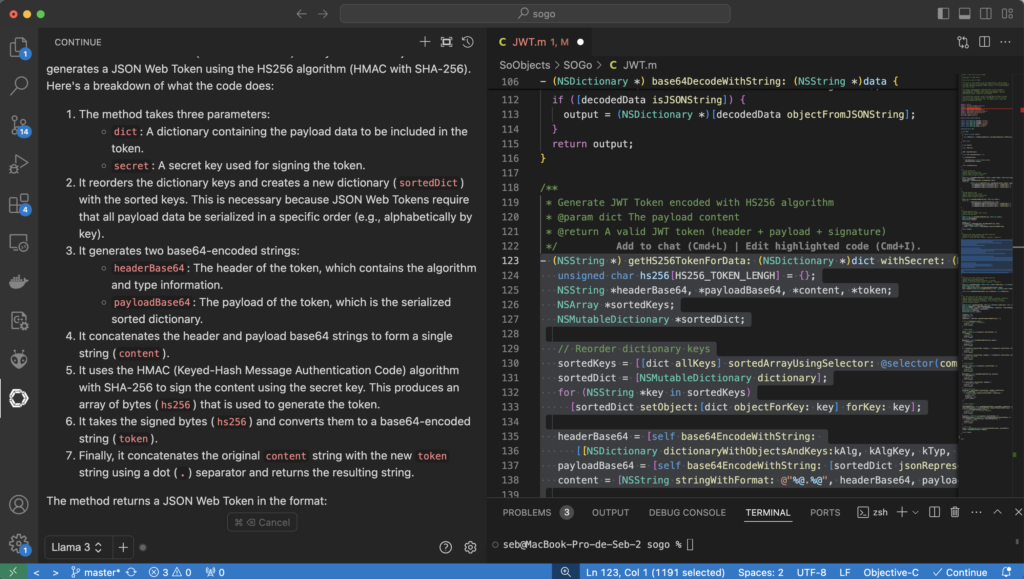
You can ask the LLM to explain what the selected code does.
This can be useful to confirm what we had understood of it.
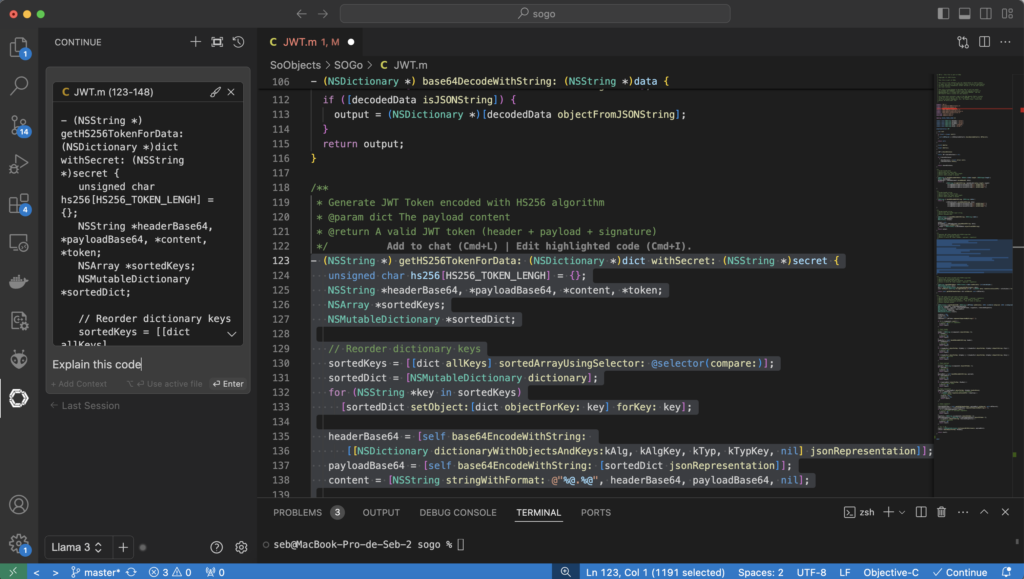
The method is a little different: select the code to explain, then right-click, Continue and Add Highlighted Code to Context or more simply use CMD + L.
This opens a new context in the chatbot. Then ask the chatbot to explain the code by typing Explain this code under the highlighted code and pressing Enter.
Generating a commit message, other commands
You can also ask it to generate a commit message by using /commit in the prompt. Very handy!
There are loads of existing commands; for those, I suggest you read the documentation.
Autocompletion, code suggestions
By downloading the Ollama model Starcoder 3b, Continue can offer programming assistance.
First, download the model:
ollama pull starcoder2:3b
Then add the following configuration to Continue:
"tabAutocompleteModel": {

"title": "Starcoder 3b",

"provider": "ollama",

"model": "starcoder2:3b"

},

"tabAutocompleteOptions": {

"useCopyBuffer": false,

"maxPromptTokens": 400,

"prefixPercentage": 0.5

}
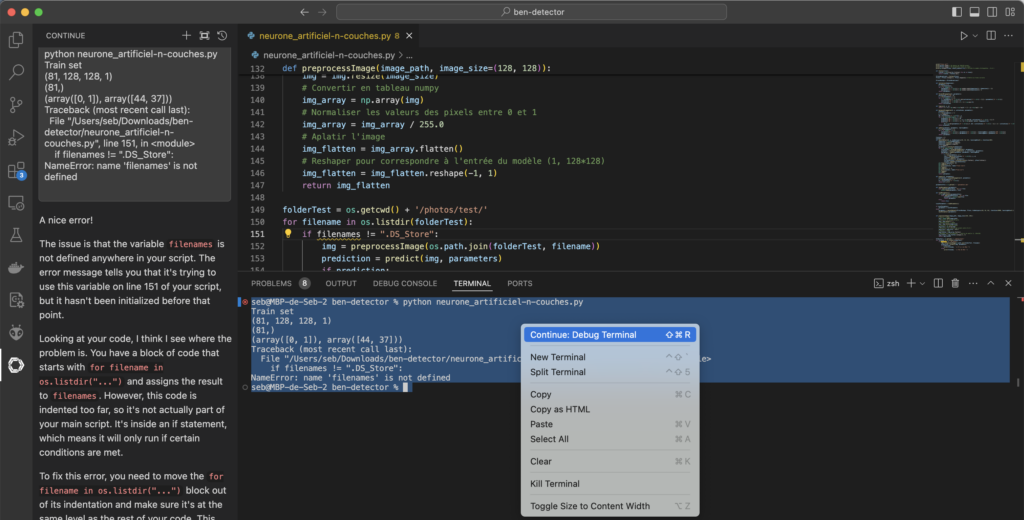
Debugging terminal errors (compilation, execution)
Perhaps one of the most useful features: it can help you debug terminal errors.
Simply select the error in the terminal and press CMD + SHIFT + R.
Conclusion

So there you have a few ideas on bringing AI into our fine profession as programmers.
I encourage you to read the Continue documentation, and also to try other models, which will give more or less consistent results.
You can also use Chat GPT by setting your Open AI key in Continue - this will give better results, but it will need a permanent connection and will come at a cost.
Always keep in mind that it is a tool, not an end in itself. You must ALWAYS review and assess what it suggests.
Want to bring AI or LLMs into your Python tools? Find out about my freelance Python work on developpeur-python.com.